Skip to content
97.5% of teams see value from GC AI before month oneSee how
Agent Connectors

Move faster with everything in one place.

Agent Connectors put GC AI to work in the tools you already use: reading your email, files, calendar, and Slack, and taking action in them with your approval.

  • Contract Review
  • Legal Research
  • Workflow Automation
  • Knowledge Base

20+ connectors at launch
  • Gmail
  • Slack
  • Notion
  • Google Drive
  • Outlook
  • Microsoft Teams
  • HubSpot
  • Linear
  • Asana
  • Confluence
  • Dropbox
  • GitHub
  • Google Calendar
  • Google Docs
  • Google Sheets
  • Granola
  • OneDrive
  • USPTO
  • Agiloft

Trusted by 2100+ legal teams

  • Arc'teryx
  • Helix
  • Interface
  • Viant
  • Wayfair
  • SimplePractice
  • Lockheed Martin
  • TIME
  • Landstar
  • Post
  • SKIMS
  • Zip
  • Gusto
  • Riot Games
  • SoftBank
  • Bass Pro Shops
  • Penguin Random House
  • Love's Travel Stops
  • Nestlé

Fits your stack, not the other way around

GC AI reads from the apps you connect and acts in them, all in the chat where you already draft and decide.

With 20+ connectors, it plugs directly into your existing tools, bringing live context into every conversation. No switching between apps, exporting threads, or uploading files. You get just the information you need and the ability to complete the task without leaving the chat.

GC AI connecting to Slack, Google Drive and USPTO, each toggling to Connected

Scale your work, not your headcount

Pull live context without the copy-paste
Ask about your inbox, shared drive, CRM, or Slack history. GC AI reads from the apps you connected when you ask.
Finish the task in the same chat
Draft a reply, schedule a meeting, post to a channel, update a doc, or file a task right where you did the thinking. The hours you spent on execution go back into strategy.
An expert on call for the whole team
One lawyer or the newest hire, anyone can ask and get an answer from your actual apps, not a generic template.
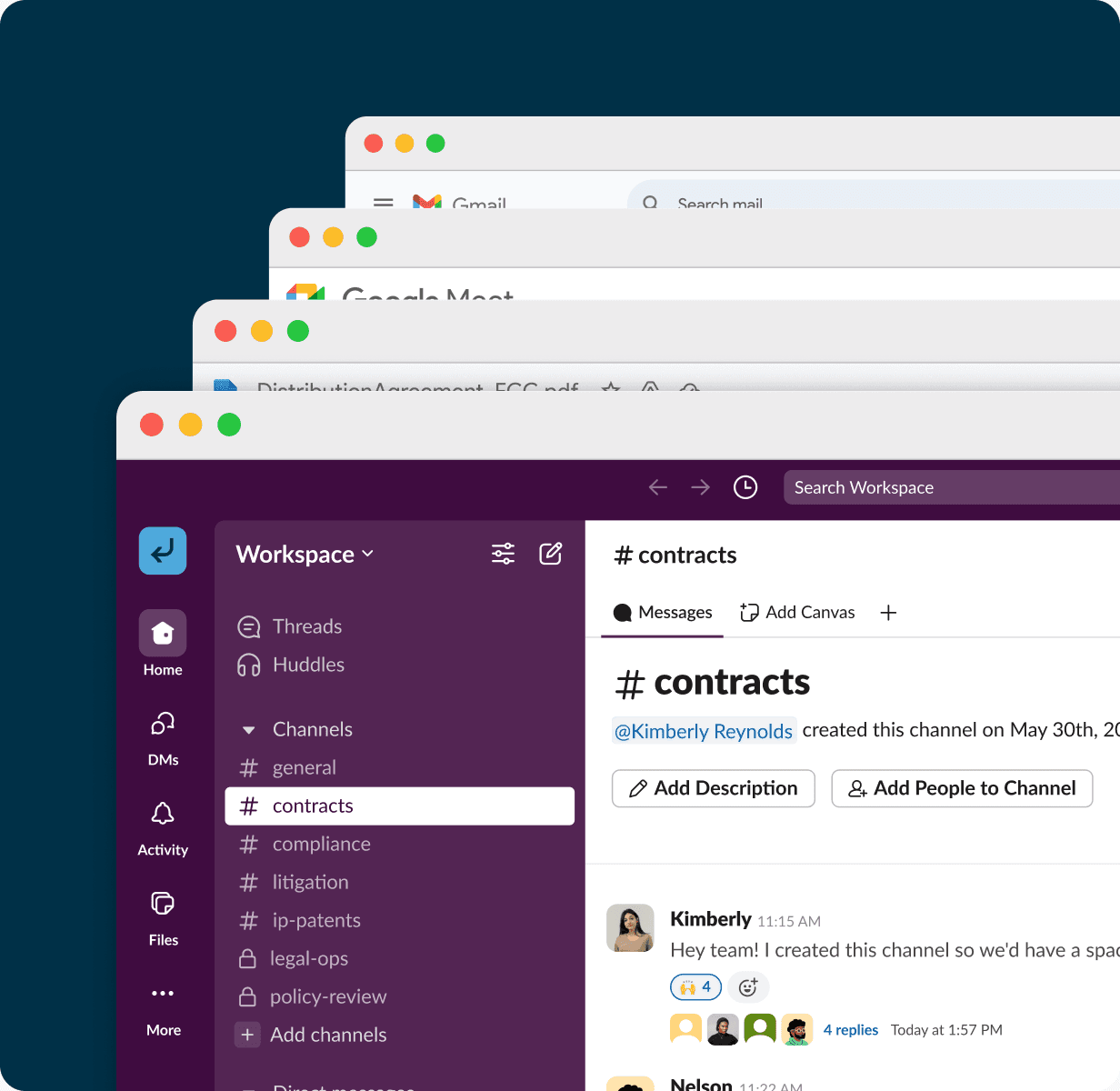
Slack, Gmail, Google Meet and Google Drive windows stacked on a navy panel

What you can do with connected apps

  • Outlook logo
  • Google Drive logo
  • Microsoft SharePoint logo
  • Gmail logo

Commercial counsel

Negotiation prep

A counterparty thread landed overnight and the call is in an hour. Ask for the latest positions, the current redline, and a draft reply. Approve the send or edit it.

  • Notion logo
  • Microsoft SharePoint logo

Legal Ops

Policy lookup

The business asks if the remote-work policy covers contractors in Canada. GC AI finds the current version, summarizes the relevant section, and cites where it lives.

  • HubSpot logo
  • Granola logo
  • Gmail logo

Corporate counsel

Call prep

Back-to-back customer calls. Ask for a one-page brief with the deal stage, the last email exchange, and notes from the prior meeting.

  • Outlook logo
  • Google Calendar logo
  • Slack logo
  • Gmail logo

In-house generalist

Weekly priorities

Start the week by asking what's urgent: unread email, calendar conflicts, and Slack mentions that need legal input. Approve follow-ups right in the chat.
You approve before anything happens

Set permissions action by action
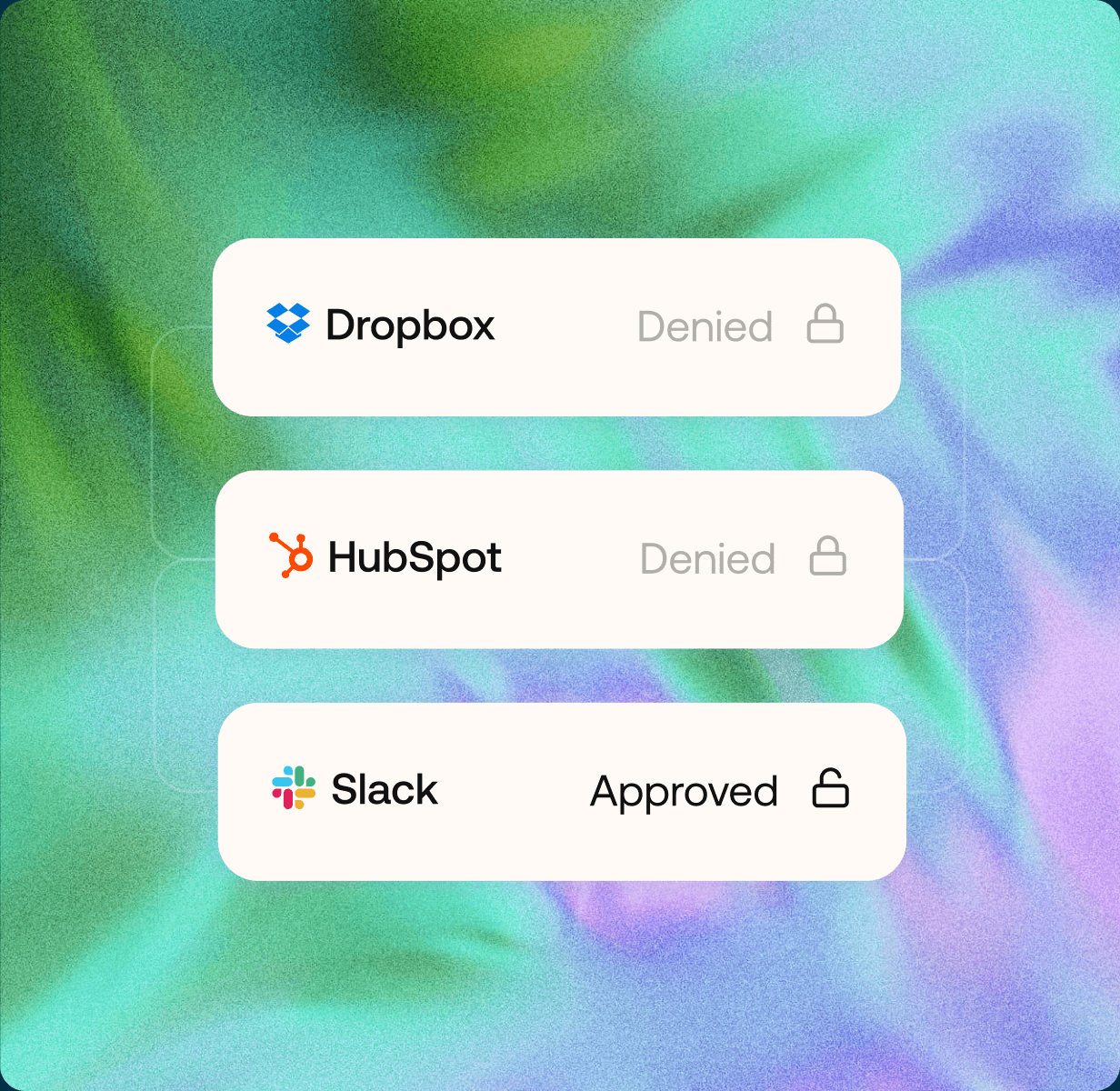
Every action type has its own setting: Needs approval, Always allow, or Block. Searching your inbox and sending an email are different permissions, so GC AI reads freely while it still asks before anything goes out.
Approve, edit, or deny right in the thread
When GC AI wants to send or update a record, a card appears with Approve, Always approve, and Deny. Edit the draft first, or move low-risk actions to Always allow once you trust them.
Loosen the reins on your own schedule
Start with Needs approval on anything that sends or changes data, then promote the routine actions to Always allow as trust builds.
Connector permission cards showing Dropbox denied, HubSpot denied, and Slack approved

Built to scale with your team

Connect an app and start in minutes

Each person links their own apps in Settings and starts asking, choosing from 20+ connectors.

Agiloft, Asana, Confluence, Dropbox, GitHub, Gmail, Google Calendar, Google Docs, Google Drive, Google Sheets, Granola

Simple setup at any scale

Whether you're supporting five users or five hundred, the process doesn't change. Scaling your team doesn't require a new project or another software purchase.

Users own their accounts, admins set organization policies

Agent Connectors are on by default. Each user connects and manages their own accounts, while admins can disable individual connectors for the organization in Settings → Policies → Connector policies. Admins can see who connected which apps and connector usage, but not the content in those accounts.

Privacy First

Your data is encrypted in transit and at rest, stored securely, and always remains under your control. We never use your content to train AI.

Connect all your existing tools to GC AI

Filter connectors by category

20 of 20 connectors shown

  • Legal & IP

    Agiloft

    Sync contract data and automate legal workflows directly within Agiloft CLM.

  • Work Tracking

    Asana

    Link legal tasks and approvals to Asana projects for seamless cross-team tracking.

  • Collaboration

    Confluence

    Search and reference internal legal wikis and policies stored in Confluence.

  • Files & Docs

    Dropbox

    Access contracts, NDAs, and shared legal documents stored in Dropbox.

  • Work Tracking

    GitHub

    Review code licenses, compliance docs, and open-source policies from GitHub.

  • Email & Calendar

    Gmail

    Pull context from email threads and attachments directly into your legal research.

  • Email & Calendar

    Google Calendar

    Schedule review deadlines, hearings, and approval windows from Google Calendar.

  • Files & Docs

    Google Docs

    Draft, review, and redline contracts directly in Google Docs without switching tools.

  • Files & Docs

    Google Drive

    Access shared legal folders and team document libraries stored in Google Drive.

  • Files & Docs

    Google Sheets

    Import data from trackers, budgets, and matter logs managed in Google Sheets.

  • Sales & Meetings

    Granola

    Capture meeting notes and action items from legal discussions recorded in Granola.

  • Sales & Meetings

    HubSpot

    Connect deal data and customer records from HubSpot to contract workflows.

  • Work Tracking

    Linear

    Track legal requests and project progress alongside engineering work in Linear.

  • Files & Docs

    Microsoft SharePoint

    Browse and reference legal files and team sites hosted on Microsoft SharePoint.

  • Collaboration

    Microsoft Teams

    Surface contract questions and legal requests from Microsoft Teams conversations.

  • Collaboration

    Notion

    Pull in legal playbooks, policies, and knowledge base pages stored in Notion.

  • Files & Docs

    OneDrive

    Access contracts and legal documents synced through Microsoft OneDrive storage.

  • Email & Calendar

    Outlook

    Reference email threads, calendar invites, and attachments from Outlook.

  • Collaboration

    Slack

    Surface legal requests and approvals shared across your Slack channels.

  • Legal & IP

    USPTO

    Search patent filings, trademark records, and IP documentation from USPTO.
SOC 2 certification badgeSOC 2
SOC 3 certification badgeSOC 3
GDPR badgeGDPR

Bring your apps. We'll bring the agent.

Book a Demo and learn how GC AI can help your legal team save time and get more done.

What to expect:

  • A walkthrough of the platform, tailored to your team's use cases.
  • Q&A session about security, integrations, and onboarding.
  • A 14-day free trial if the platform looks like a fit for your team.

Book a Demo

Dial code +1 (United States)

By submitting, you agree to our Terms and Privacy Policy.

Common questions

Who connects the accounts?
Agent Connectors are on by default, and each user connects and manages their own accounts through a secure OAuth flow. GC AI never receives your password. Admins do not connect accounts on your behalf, but they can disable individual connectors for the organization in Settings → Policies → Connector policies. For Microsoft connectors, your organization's Microsoft admin may need to grant consent in Microsoft admin settings outside GC AI.
What can it do without asking me?
That is up to you. Every action type has its own setting: Needs approval, Always allow, or Block. Searching your inbox and sending an email are separate permissions. Out of the box GC AI reads freely and still asks before anything goes out. As you see how it handles each action type, you can move the ones you trust to Always allow.
Can I turn a connector off?
Yes. Disconnect your account at any time from your connector settings. Access is revoked for that connection and GC AI can no longer use that app's tools in chat until you connect again. An admin can also disable the connector for the organization from Settings → Policies → Connector policies. You can leave a connector on and Block individual action types under Tools instead.
What do admins see?
Admins can see who connected which apps and how connectors are being used, but not the content in connected accounts. They manage organization-level connector access in Settings → Policies → Connector policies, where they can disable individual connectors. Microsoft may also require admin consent in Microsoft's own admin settings outside GC AI. GC AI does not use your confidential inputs to train commercial models, subject to the security and privacy commitments described on gc.ai/security and in your agreement.
Which apps are included?
20+ connectors, covering the tools legal teams live in: email, files, calendar and Slack among them. Connect the ones you use from Settings → Integrations → Agent Connectors. Each connector lists the actions it can take in a pre-connect summary before you authorize it.